Navigation menu
hello Guest
Administrator Manual
Generate Access Code or Enroll
Click the Enroll tab and then click the Enroll button on green bar to generate access code or to enroll. Select the Bill Type, provide the Reference/PO Number, and Comment.
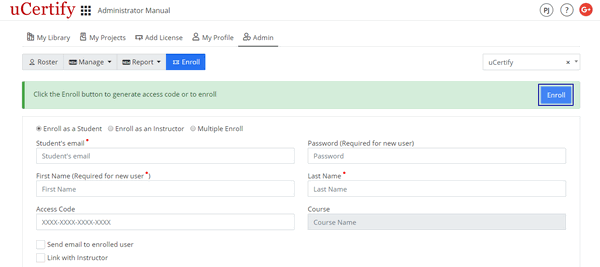
Figure 5.1: Enroll Page with Enroll Button
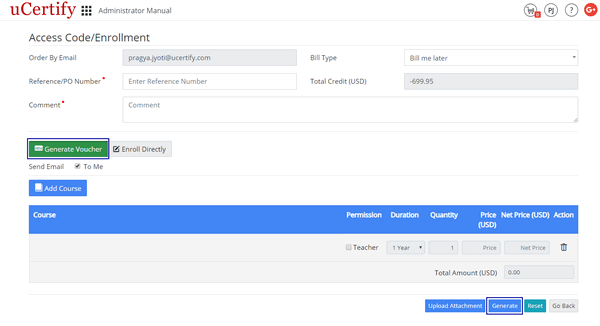
Figure 5.2: Generate Voucher tab with Generate button.
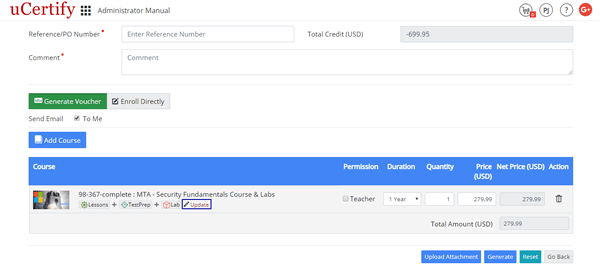
Figure 5.3: Generate Voucher Page with Update Link
The License Select modal box will open. Expand the Add-on Components section, select the additional license, and click the Update button.
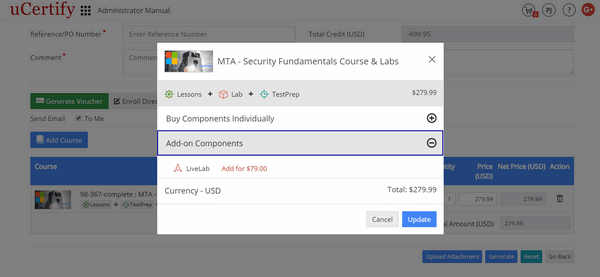
Figure 5.4: License Select Modal Box with Add-on Components Option
You can also select the individual license for the course. To do so, expand the Buy Components Individually section, select the individual license, and then click the Update button.
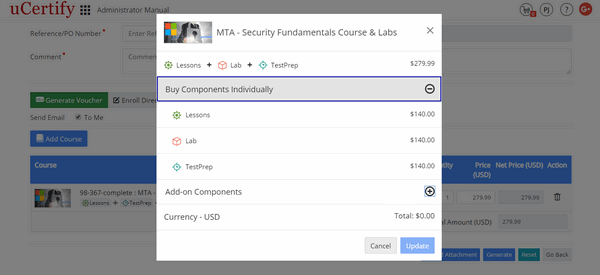
Figure 5.5: License Select Modal Box with Buy Components Individually Option
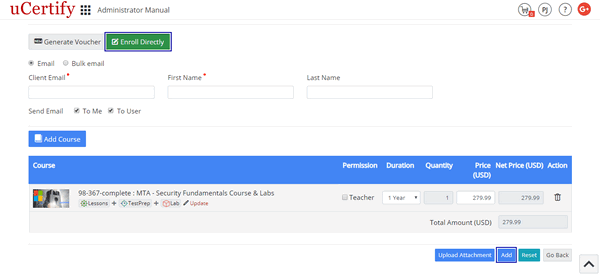
Figure 5.6: Enroll Directly Tab with Add Button
Figure 5.1: Enroll Page with Enroll Button
- Generate Voucher: Click the Add Course button. Check the desired courses and click the Save button to add course. Click the Generate button to generate voucher.
Figure 5.2: Generate Voucher tab with Generate button.
Figure 5.3: Generate Voucher Page with Update Link
The License Select modal box will open. Expand the Add-on Components section, select the additional license, and click the Update button.
Figure 5.4: License Select Modal Box with Add-on Components Option
You can also select the individual license for the course. To do so, expand the Buy Components Individually section, select the individual license, and then click the Update button.
Figure 5.5: License Select Modal Box with Buy Components Individually Option
- Enroll Directly: Click the Enroll Directly tab and select the Email button. Provide the Client Email, First Name, and Last Name. Click the Add Course button. Check the desired courses and click the Save button. Check the Teacher checkbox under the Permission heading if you are providing the user with instructor permission. Click the Add button to enroll the email in the course directly.
Select the Bulk Email button, provide Format Email id, First Name, Last Name (One user per line) in the box below the Bulk Email button, and click the Next button. Click the Add Course button to add the course and then click the Add Bulk button to enroll bulk email to the course directly.
Figure 5.6: Enroll Directly Tab with Add Button