Navigation menu
hello Guest

Administrator Manual
Report
Enrollments
Click the Report tab and select the Enrollments option. Now, define search criteria using "Advance Search" under the "Search" button OR enter email/name in the search text box and click on the search icon to list Enrollments. The Enrollments page will open that contain Enrolled user name or email address, Course Name (CRN), Permission (License Type), Order Number (Bill Type), On Date (Time Passed), and Expire On (Time).
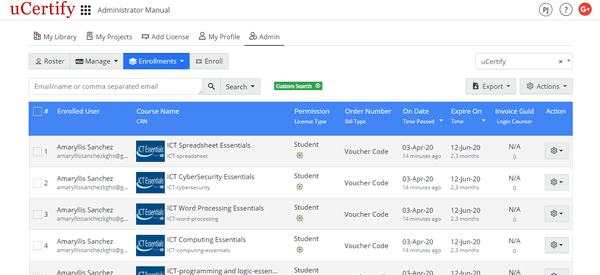
Figure 4.1: Enrollments Page
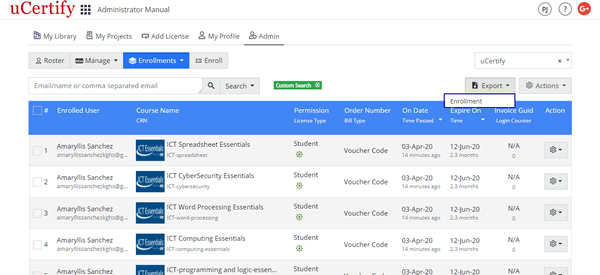
Figure 4.2: Export Menu of Enrollments Tab with Enrollment Option
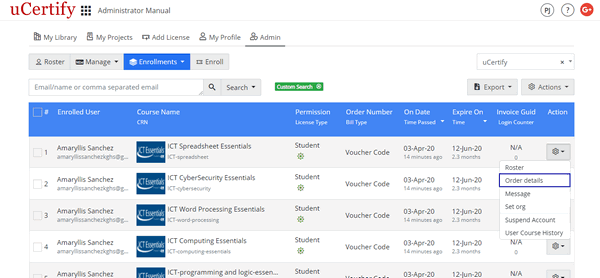
Figure 4.3: Settings Menu of the Administrators Page with Order details Option
Figure 4.1: Enrollments Page
- Export Enrollment Report: To export and view the enrollment report in excel sheet, click the Export menu, and select the Enrollment option.
Figure 4.2: Export Menu of Enrollments Tab with Enrollment Option
- Settings Menu: To view the order details of the enrolled user, click the settings menu parallel to the enrolled user name or email address, and select the Order details option.
Figure 4.3: Settings Menu of the Administrators Page with Order details Option
Orders
Click the Report tab and select the Orders option. Define search criteria using "Advance Search" under the "Search" button OR enter order number in the search text box and click on the search icon to list Orders. The Orders page will open that contain On Date (Time), Order Number (Order Type), Ordered By, Course Name (CRN/License Type/Permission), Status, and PO Number.
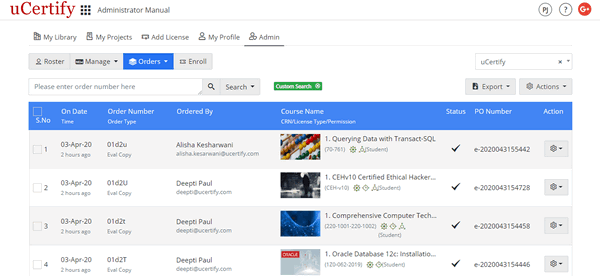
Figure 4.4: Orders Page
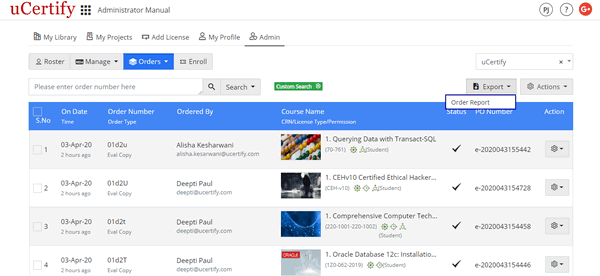
Figure 4.5: Export Menu of Orders Page with Order Report Option
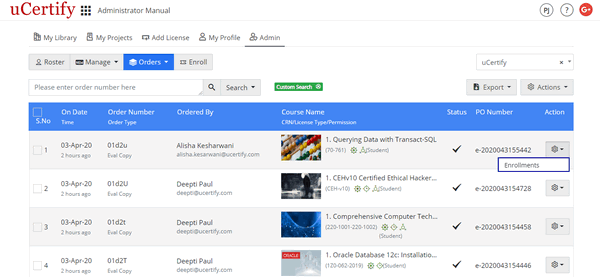
Figure 4.6: Settings Menu of Orders Page with Enrollments Option
Figure 4.4: Orders Page
- Export Order Report: To export and view the order report in excel sheet, click the Export menu, and select the Order Report option.
Figure 4.5: Export Menu of Orders Page with Order Report Option
- Settings Menu: To view the enrollments under the particular order, click the settings menu parallel to the order number, and select the Enrollments option.
Figure 4.6: Settings Menu of Orders Page with Enrollments Option
Vouchers
Click the Report tab and select the Vouchers option. Define search criteria using "Advance Search" under the "Search" button OR enter voucher code in the search text box and click on the search icon to list Vouchers. The Vouchers page will open that contain Voucher Code, Order By (Date), Course Name (CRN), Permission (License Type), Order Number (Transaction Number), Enrolled user (User Status), Used On (Time Passed).
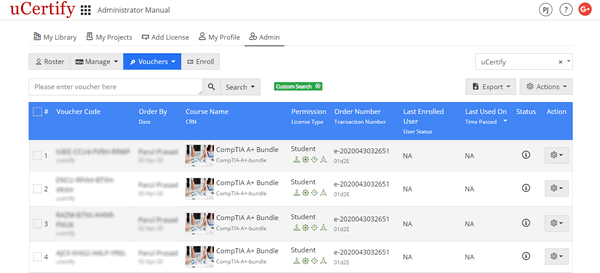
Figure 4.7: Vouchers Page
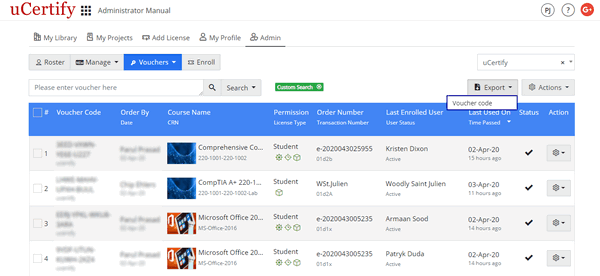
Figure 4.8: Export menu of Vouchers Page with Voucher Code Option
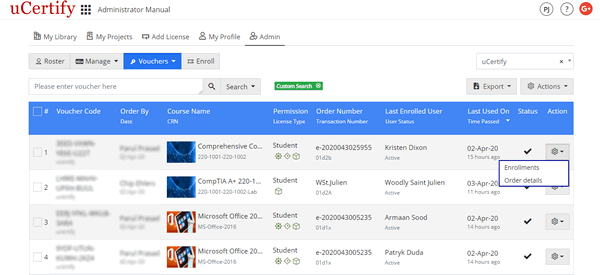
Figure 4.9: Settings Menu of Vouchers Page with Options
Figure 4.7: Vouchers Page
- Export Voucher: To export and view the voucher report in excel sheet, click the Export menu, and select the Voucher code option.
Figure 4.8: Export menu of Vouchers Page with Voucher Code Option
- Settings Menu: To view the enrollments or order details of the desired voucher, click the settings menu parallel to the voucher code, and select the required option.
Figure 4.9: Settings Menu of Vouchers Page with Options