Navigation menu
hello Guest

Administrator Manual
Courses
Click the Manage tab and select the Courses option. The Courses page will open. You need to define search criteria using "Advance Search" under the "Search" button or enter email/name of instructor in the search text box and click on the search icon to list courses under that instructor. A list will open that contains the Course Name, Status, License Type, and Vendor.
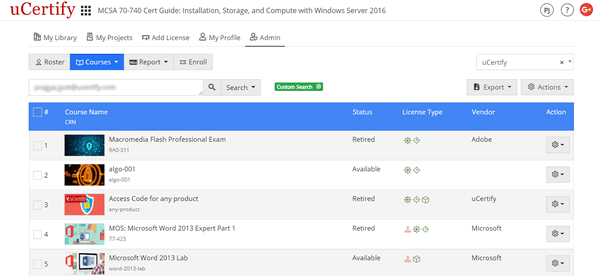
Figure 3.4: Courses Page
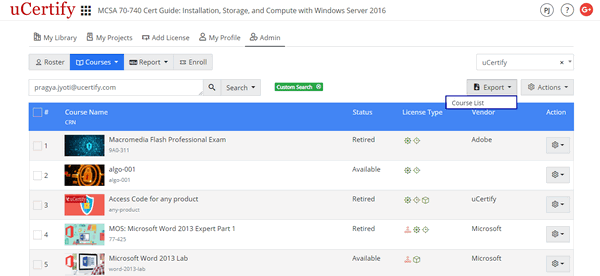
Figure 3.5: Export Menu of Courses Page with Option
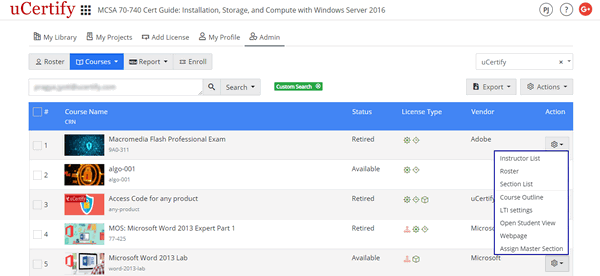
Figure 3.6: Settings Menu of Courses Page with Options
Figure 3.4: Courses Page
- Export: To export the course list, click the Export menu and select the Course List option.
Figure 3.5: Export Menu of Courses Page with Option
- Settings Menu: You can perform the following actions using the settings menu:
- Instructor List: To view the Instructor List of the desired course, click the settings menu parallel to the Course Name and select the Roster option.
- Roster: To view the roster of the course, click the settings menu parallel to the Course Name and select the Roster option.
- Section List: To view the section list of the course, click the settings menu parallel to the Course Name and select the Section List option.
- Course Outline: To view the course outline of the desired course, click the settings menu parallel to the Course Name and select the Course Outline option.
- LTI Settings: To create the LTI Link or Custom parameter of the course, click the Settings menu parallel to the Course Name and select the LTI settings option.
- Open Student View: To open the student view of the course, click the settings menu parallel to the Course Name and select the Open Student View option.
- Webpage: To view the webpage of the course, click the settings menu parallel to the Course Name and select the Webpage option.
- Assign Master Section: To assign section and instructor to the course, click the settings menu parallel to the Course Name and select the Assign Master Section option. The Assign Master Section modal box will open, select the instructor from the Instructor List drop-down and then click the Save button.
Figure 3.6: Settings Menu of Courses Page with Options